
Overview - What is an Application Source?
An Application Source allows vis|ability to launch a locally installed Windows application on a Display Node and present that application as a Source within the system.
Once configured, the application can be selected like other Sources and placed onto a Display Area.
Examples might include:
- Notepad++
- Customer-specific operational applications
- Monitoring or visualization software
- Locally installed dashboards or utilities
FAT Standard: Systems arriving from the vis|ability Factory Acceptance Test (FAT) will generally have Notepad++ installed and configured as an Application Source. This provides a known application that can be used during commissioning to verify Application Source functionality.
Before You Begin
An Application Source does not install an application on the Display Node.
Before creating an Application Source, verify that:
- The application is installed on the target Display Node.
- The application can be launched successfully from Windows on that Display Node.
- The path to the application's executable is known.
- Any required command-line parameters or credentials are available.
The executable path configured in vis|ability must point to the actual installation location on the Display Node.
Audio configuration, if required, must be separately handled through the Audio Source setup.
Best Practice: Before troubleshooting an Application Source in vis|ability, log into the Display Node and verify that the application launches normally in Windows.
Adding an Application Source
Navigate to the Application Source Configuration (See Image Below):
In the System Tree, open the Sources branch, then select Application.
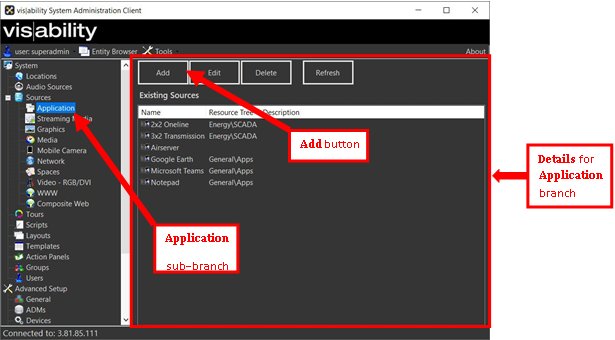
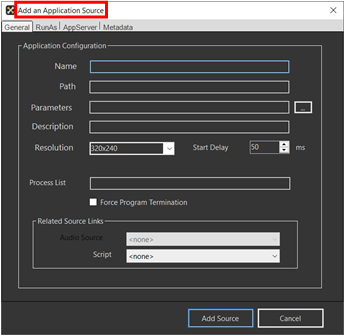
Click Add to open the Add an Application Source window (See Image Below).
Key Application Configuration Parameters
From the General tab of the Add an Application Source window, administrators can configure how the application behaves when launched, including advanced settings like scripting, audio, and process detection. Below is the list of parameters that may be needed for the Application to run properly in vis|ability.
| Parameter | Required? | Description |
|---|---|---|
| Name | Yes | Display name used in the Desktop Client. Max 64 characters. |
| Path | Yes | Full path to the application's executable on the Display Node. Example: C:\Program Files\Internet Explorer\iexplore.exe |
| Parameters | No | Command-line arguments specific to the application. These can be manually entered or managed via the Advanced Parameters Editor. |
| Description | No | Optional descriptive text used for easier search and identification in the Desktop Client. Max 64 characters. |
| Resolution | Yes | Initial display size (e.g., 1280x720) when the application launches on the Display Wall. |
| Start Delay | Yes | Wait time (in milliseconds) before the system considers the app ready for interaction. Accounts for app splash/loading time. |
| Process List | No | Helps vis|ability find the associated Source on the Display Node. It is not required. If entered, the name should match the name of the Application as it is listed in the Windows Task Manager, but it does not need to include the file extension (i.e., simply enter Notepad). |
| Force Program Termination | No | If enabled, the application will forcibly close when the source is removed—no save prompts will be shown. |
The "RunAs" Tab
vis|ability allows you to configure an Application Source to run with specific User credentials.
This is common for environments where certain software applications can only be launched with administrative permissions. This feature is like a Windows systems administrator running an application as an administrator from a workstation that is logged onto by a User that has no administrative rights on the domain.
If the Application should be run as a specific User, click the RunAs tab on the Add an Application Source window and enter the Domain, Username and Password of the desired User. When ready, click Add Source.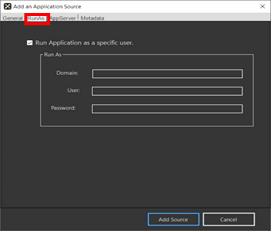
Troubleshooting - Application Window Behavior
The intended behavior of an Application Source is for the application to launch and fit within the window size and position defined by vis|ability. This allows the application to behave like other Sources and sit cleanly within the assigned area of the Display Wall.
However, not every application will respond to window sizing and positioning as expected.
Some applications may:
- Open as a full-screen or maximized window.
- Launch at their own predefined size or position.
- Ignore the resolution configured for the Application Source.
- Open additional windows, dialogs, or browser windows outside of the intended Source area.
This behavior is typically determined by the application itself, not vis|ability. Some applications control their own window state and do not allow an external system to override their launch size or position.
Important: If an application launches successfully but does not fit within the window defined by vis|ability, this does not necessarily indicate an issue with the Application Source configuration. vis|ability can request a size and position, but the application ultimately determines whether it honors those parameters.
During Commissioning
If an application does not size or position correctly:
- Verify that the Application Source is configured correctly.
- Confirm that the application launches successfully on the Display Node.
- Check the application's own settings for options related to window size, startup behavior, full-screen mode, or launch position.
- If the application continues to override the window defined by vis|ability, document the behavior and communicate it to the customer.
Any changes required to make the application launch in a specific window size or position may need to be made within the application itself or through application-specific configuration.
Customer Expectation: Clearly communicate when window behavior is being controlled by a third-party application. The application may still be successfully launched and managed as a vis|ability Source even if its window behavior prevents it from fitting the Display Area as intended.