
Saving and Using Layouts - Training Video
The Step-By-Step Guide
Layouts
A Layout is a saved arrangement of content on a display, including the placement, size, and order of different Sources. This makes it easy to restore a specific setup with a simple double-click or tap. Once a Layout is loaded onto the display, users can adjust it as needed.
Viewing Saved Layouts
To view previously defined and saved Layouts:
-
Click or tap the Layouts/Temp button on the Display Control Window Toolbar.
-
Ensure the Layouts/Templates switch is set to Layouts.
Saving a Layout
To save a new Layout:
-
Arrange Source content on the Display (an empty wall cannot be saved as a Layout).
-
Click or tap the Save button on the Display Control Window Toolbar.
-
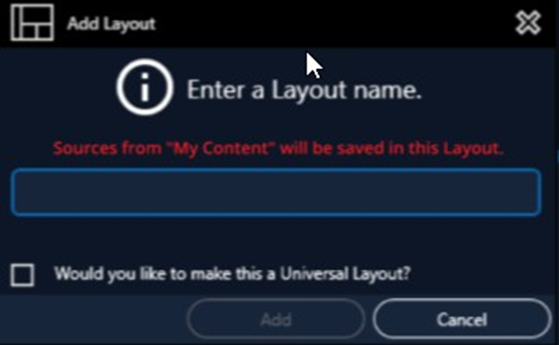
From the Save drop-down menu, select Save Layout. The "Enter a Layout Name" dialog appears.
-
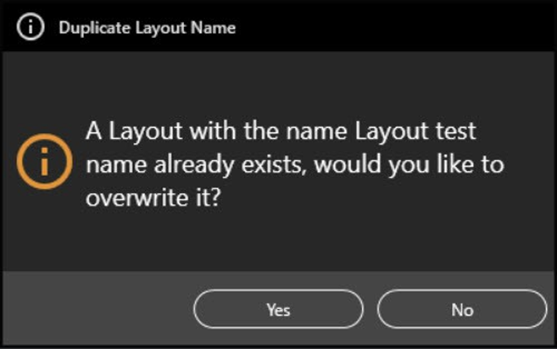
Type a Layout name (e.g., "Layout Test Name"). If the name already exists, the system will prompt you to overwrite the existing Layout.
-
Click Yes or No to confirm overwriting an existing Layout.
-
Click the Add button. The new Layout appears in the Layout List in alphabetical order.
Important Note
Content from the My Content folder in the Sources menu is not saved.
Warning
Overwriting a Layout cannot be undone. Proceed with caution.
Deleting a Layout
To delete a Layout:
1. Right-click or tap on the Layout in the Layout List on the Display Control Window.
2. Click or tap Remove from the Load drop-down menu.

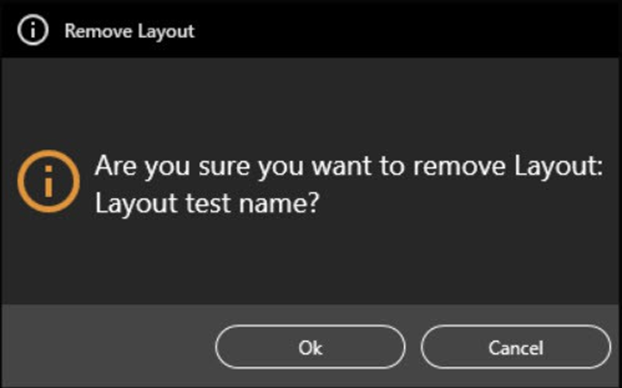
3. Confirm deletion in the Remove Layout Confirmation Dialog.
Warning
Deleting a Layout cannot be undone. Proceed with caution.